Forgot Windows 7 Password?
Tweet
10
Many people ask me the question that how to recover their lost Windows 7 Password
on my site or Email. I know they urgently need to access Windows 7 for
different reasons. they are worry that the Win7 OS would be destroied
and their data would be lost. This is not worried and I will tell you
the steps to recover forgotten Windows 7 login password.
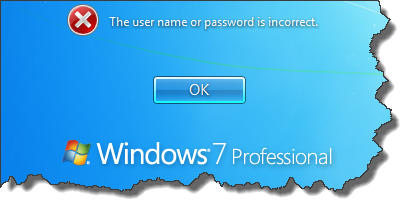
As above, this picture shows, if you enter wrong passcode, it will prompt that "The user name or password is incorrect". If you have continuous input the wrong password three times, you will be locked untill you reboot the computer.
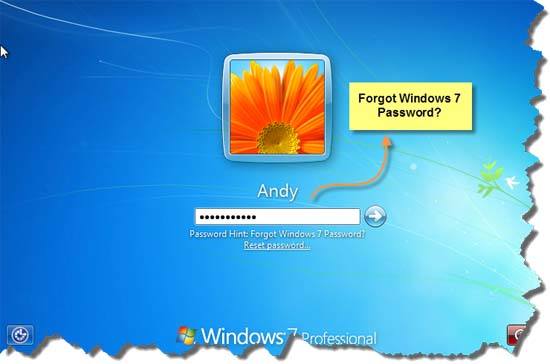
Notes: You need a Windows 7 Password Reset disk. If
you don't have created it before, you should use the Windows Password
Recovery Tool to burn a reset CD/DVD or USB flash drive.
Step 1. Download the Windows Password Recovery Tool
Go to the official site of Windows Password Recovery Tool, and download it for free. Install it with default options.
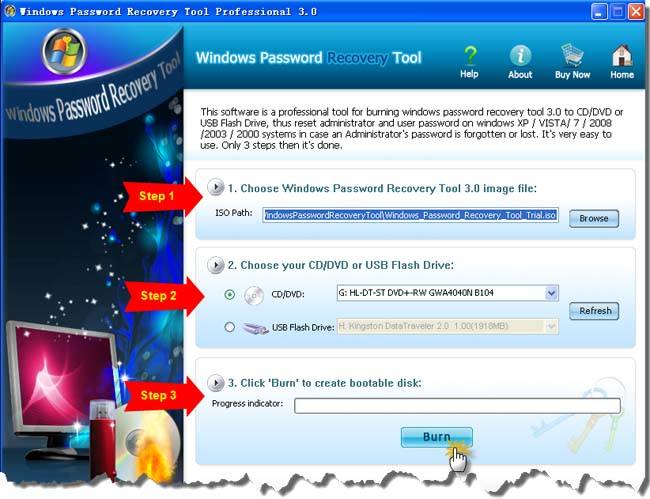
Step 2. Create a Windows 7 Password Reset disk
Run this soft, insert a blank cd/dvd or usb flash drive. Follow the
step-by-step guide to burn a Windows 7 Password Reset disk. You can burn
it to a cd/dvd or USB, it depends on your personal condition. After
burning successfully, you get a password reset disk. Now insert this
password reset disk into the locked computer which you forgot Windows 7 Password.
Step 3. Set the bios config to boot from cd/dvd or usb
- 1. Start your locked Windows 7 Computer, press Del
or F2 button while the computer is initalizing. The initial startup
screen may be similar as this image.
If you do that, you may see the bios config screen.
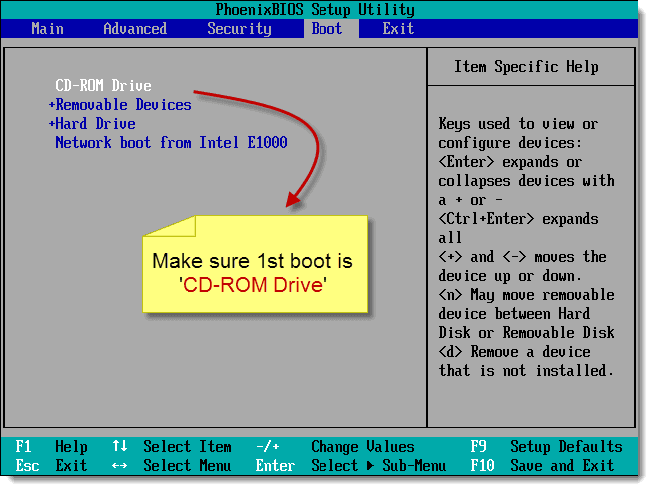
- 2. Go to the boot menu and change bios setting to make it boot from cd/dvd or usb firstly.
- 3. Press F10 to save your changes, then restart this computer.
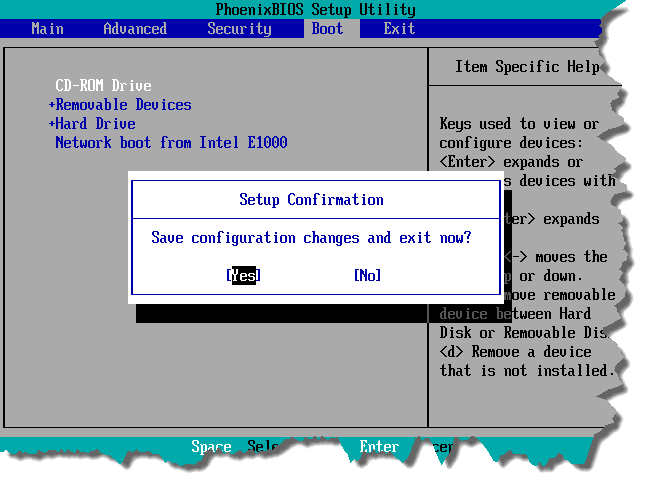
- 4 . After restart, the computer will automatically
load Windows password Recovery Tool and you can start to reset Windows 7
Password.

Step 4. Recover Windows 7 Password with the password reset disk.
- 1. Choose the Windows 7 Installation if you have more than one OS in this computer.
- 2. All Windows 7 users will be listed. Select the user name which you forgot its password, click reset button.
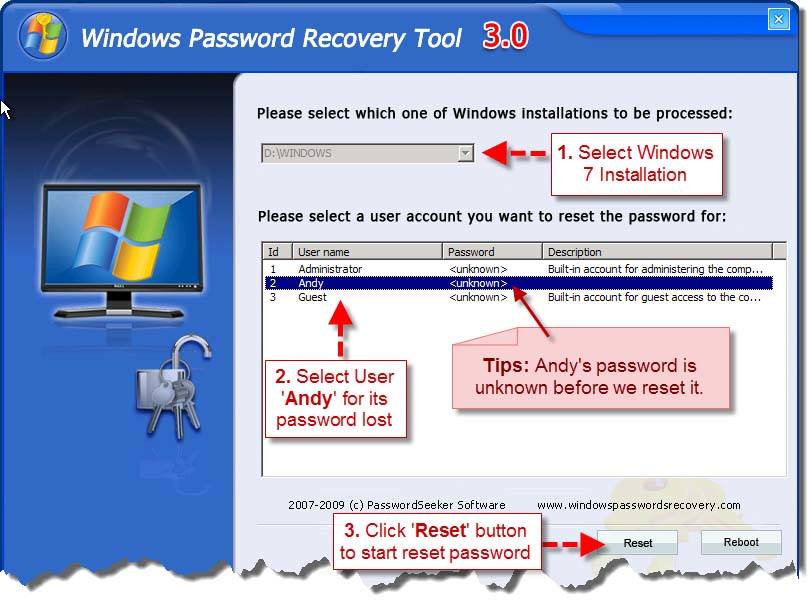
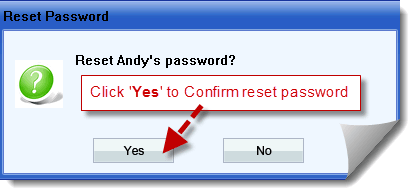
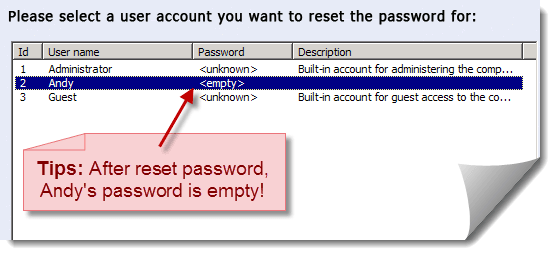
- 3. A dialog box will be pop-up, click Yes to confirm reset, then this Windows 7 user password will be reset to blank.

- 4. Eject the password reset disk, and restart you
computer, login Windows 7 with a blank password. (It means that you
don't need to typing password. If there are more than one user account
on win7, just click you account name on the logon screen)


"Forgot Windows 7 Password" is a common problem for those
who are using Win 7 OS. The above option is effective when you lost
windows 7 log on password. With this software, you do not need to worry
about this question. And it can be also useful when you forgot Windows
password for Windows XP, Vista or other OS. Get it by clicking below
link!


 Forgot Windows 7 Password?
 Re: Forgot Windows 7 Password?


