|
There are lots of different things that you can change on your profile and how you view CR4. This blog post will tackle some of the most common questions that can be answered by editing your profile. If you'd prefer, you can also watch a video tutorial that shows how to update your profile.
How to Navigate to "Edit Your Profile"
The easiest way to navigate to "Edit Your Profile" is to click on your username (located in the upper right hand corner of your browser, below the search box).
From there you will be able to check your mailbox, view subscribed discussions, logout, and edit your profile. Click on the "Edit Your Profile" button (the leftmost button).

Public Profile
All of the sections in the "Public Profile" section will be viewable by any other user. Use discretion when filling this out (remember, you are part of an online community that does not have to sign in to view your specific profile - anyone can view this, not just CR4 members). From here you can add, change, or remove your profile picture or avatar. When adding or changing an avatar, you can either select it from a predetermined list of avatars ("Pick a Standard Avatar") or use an image on your computer (by hitting the "Browse…" button).

You can also select a homepage, location, signature, and biography. Note that the homepage and biography will be on your user profile. If you choose to submit a location, it will be featured in all of your comments under your avatar (on the left-hand side panel of the comment). Signatures display at the bottom of all comments.
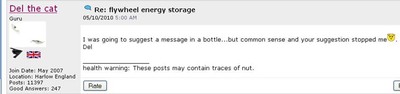
In the following example you can see that Del the cat has a signature of "health warning: These posts may contain traces of nut." His location is under the join date, but above his number of posts on the left side of the comment (in the gray area).
How to Change Your Email & Password
Scroll down to the "Email & Password" section. From here you can change your password or change your email from the current email. After you fill out and submit an email change, remember to respond to the email you get to confirm your request.

If for some reason you have not received an email to the new address requesting confirmation and you have checked your spam filter, you can contact gs-CR4Admin@ihs.com with questions.
CR4 Daily Digest Subscription & CR4 Customizations
In the "CR4 Daily Digest Subscription" you can use the drop-down menu to toggle between "Subscribe" and "Unsubscribe." The daily digest is a summary of all the blogs and threads that went up during that day. If you decide you no longer want to receive the daily digest, you can unsubscribe whenever you want (no need to email CR4Admin), and vice versa.
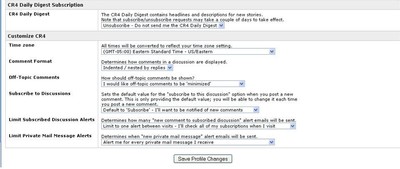
In the "Customize CR4" section, you can adjust how you see comments in blogs and forums. Using "Comment Format," you can choose to indent comments based upon replies. So if comment #2 replied to comment #1, comment #2 will be indented. Choosing a flat or chronological format will have no indentations. You can also choose to have "off-topic" comments minimized so that in order to read them, you have to un-minimize them by clicking the "+" sign on the upper right-hand corner of the comment.

You can also change discussion subscriptions. If you "Default to 'Subscribe,'" every time you comment on a blog, it will automatically subscribe you to the discussion. You can also limit the number of emails you get regarding comments added to discussions you have subscribed to. You can opt to get an alert every time a comment is made in a subscribed discussion, get only one alert between visits, or get no alerts. This is the same way with private mail message alerts.
As you can see there are plenty of customizations you can do to make your CR4 browsing more convenient. But as always, if you run across problems, do not hesitate to contact the CR4Admin at gs-CR4Admin@ihs.com.
Note: Special thanks goes out to Del the cat, sue, lynlynch, and artsmith for allowing their comment screen shots to be included in this blog.
| 


 Re: How to Change Your Profile


